What is the Excel COUNTIF Function?
The COUNTIF Function in Excel counts the number of cells that meet a specified criteria, i.e. a condition.

The COUNTIF Function in Excel counts the number of cells that meet a specified criteria, i.e. a condition.
The Excel “COUNTIF” function is used to count the number of cells in a selected range that meets a specific condition.
Given one criterion, the COUNTIF function searches for an exact match to determine the total number of cells under which the condition is met.
For instance, the criteria could be related to finding the number of cells with values greater than, less than, or equal to a specific value.
The primary drawback to the “COUNTIF” function is that only one condition is supported. If the criteria in question consists of multiple conditions, the “COUNTIFS” function would be the more practical alternative.
In addition, the criterion is not case-sensitive, so the use of upper or lower case spelling in the text string does not affect the outcome.
The formula for using the COUNTIF function in Excel is as follows.
The range can contain text strings and numbers, whereas the criterion most often contains a logical operator such as:
| Logical Operator | Description |
|---|---|
| > | Greater Than |
| < | Less Than |
| = | Equal To |
| >= | Greater Than or Equal To |
| <= | Less Than or Equal To |
| <> | Not Equal To |
For text or date-based conditions, it is necessary to enclose the criterion in double quotes, otherwise the formula will not work.
| Criterion | Description |
|---|---|
| Text |
|
| Date |
|
| Blank Cells |
|
| Non-Blank Cells |
|
| Cell References |
|
The term “wildcards” refer to special characters such as a question mark, asterisk, or tilde.
| Wildcard | Description |
|---|---|
| (?) |
|
| (*) |
|
| (~) |
|
We’ll now move on to a modeling exercise, which you can access by filling out the form below.


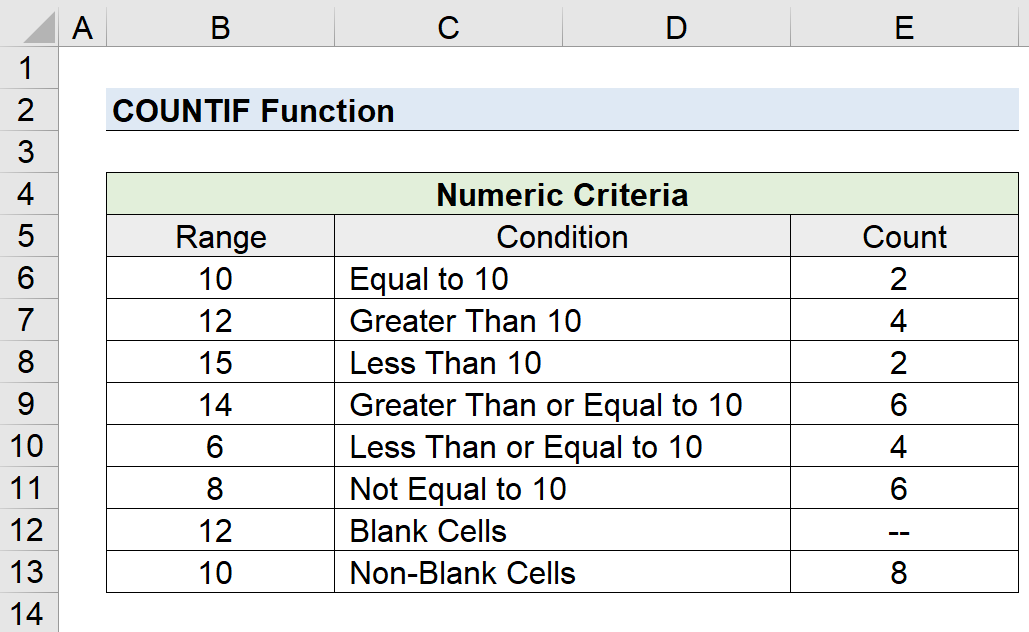
Suppose we’re given the following range of numeric data to count the number of cells that meet various types of conditions.
The range is on the left column, while the condition is on the right column.
| Range | Condition |
|---|---|
| 10 | Equal to 10 |
| 12 | Greater Than 10 |
| 15 | Less Than 10 |
| 14 | Greater Than or Equal to 10 |
| 6 | Less Than or Equal to 10 |
| 8 | Not Equal to 10 |
| 12 | Blank Cells |
| 10 | Non-Blank Cells |
The COUNTIF equations that we’ll use to count the matching cells are the following:
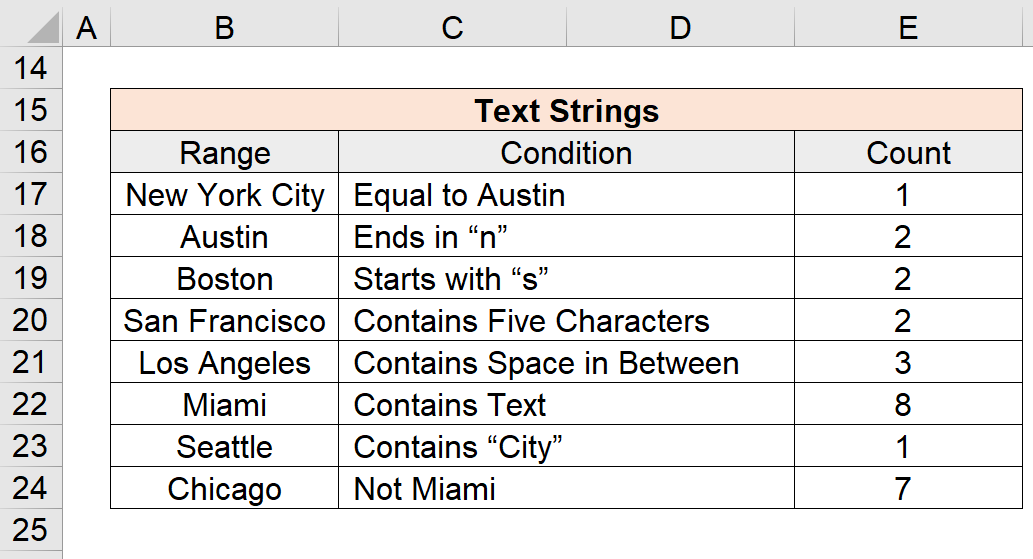
In the next section, we’ll work with the following data set of text strings, which are cities in this case.
| Range | Condition |
|---|---|
| New York City | Equal to Austin |
| Austin | Ends in “n” |
| Boston | Starts with “s” |
| San Francisco | Contains Five Characters |
| Los Angeles | Contains Space in Between |
| Miami | Contains Text |
| Seattle | Contains “City” |
| Chicago | Not Miami |
The COUNTIF function equations that we’ll enter into Excel to count the cells that meet each of the corresponding criteria are the following:



No comments yet.