What is Center Across Selection in Excel?
The Center Across Selection feature in Excel aligns text horizontally across multiple columns, without the need to merge cells.

The Center Across Selection feature in Excel aligns text horizontally across multiple columns, without the need to merge cells.
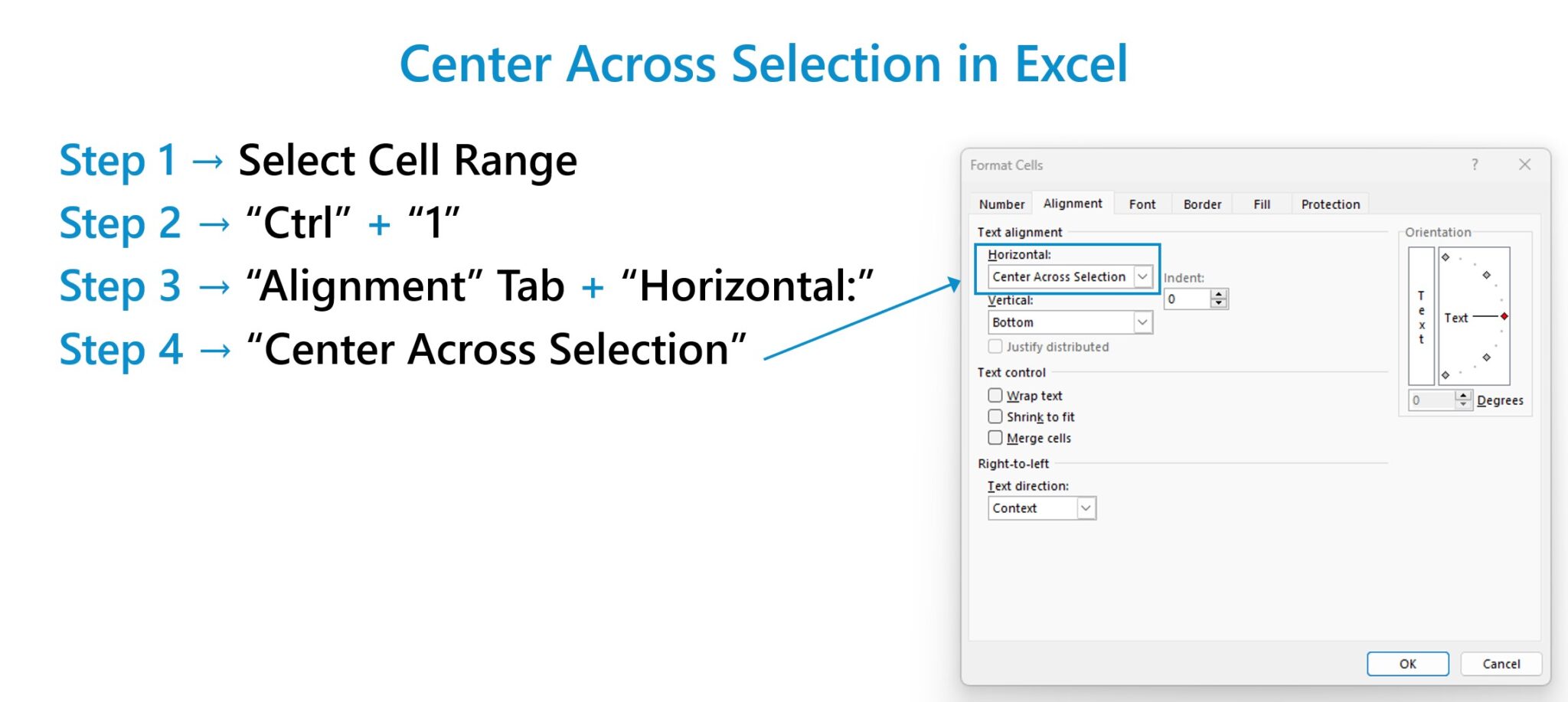
In Excel, “Center Across Selection” is a built-in feature that allows the centering of text in a cell across multiple columns.
The overall presentability of a financial model can be improved by centering text across multiple columns.
However, it is important to ensure that the formatting does not reduce a model’s structural integrity or make the navigation of the spreadsheet more cumbersome, which is a primary reason to avoid merging cells.
Therefore, it is a best practice to use the “Center Across Selection” feature in Excel, rather than merging cells.
In addition to maintaining a model's flexibility—unlike merging cells—the center across selection feature can also remove the need to manually adjust the width of a column to fit the text.
The steps to use the center across selection feature in Excel are as follows:
In order for the correct text to be centered, it is necessary for the intended text (or number) to be entered in the first cell of the selected range.
Suppose you’re forecasting the income statement of a company and want to center the “Projected” text across the five-year forecast period, as in the two-year “Historical” period.

Start by selecting the range of cells that correspond to the forecast (F3 to J3) and pressing “Ctrl + 1” to open the formatting box.
From the “Alignment” tab, open the “Horizontal:” drop-down menu in the text alignment section.
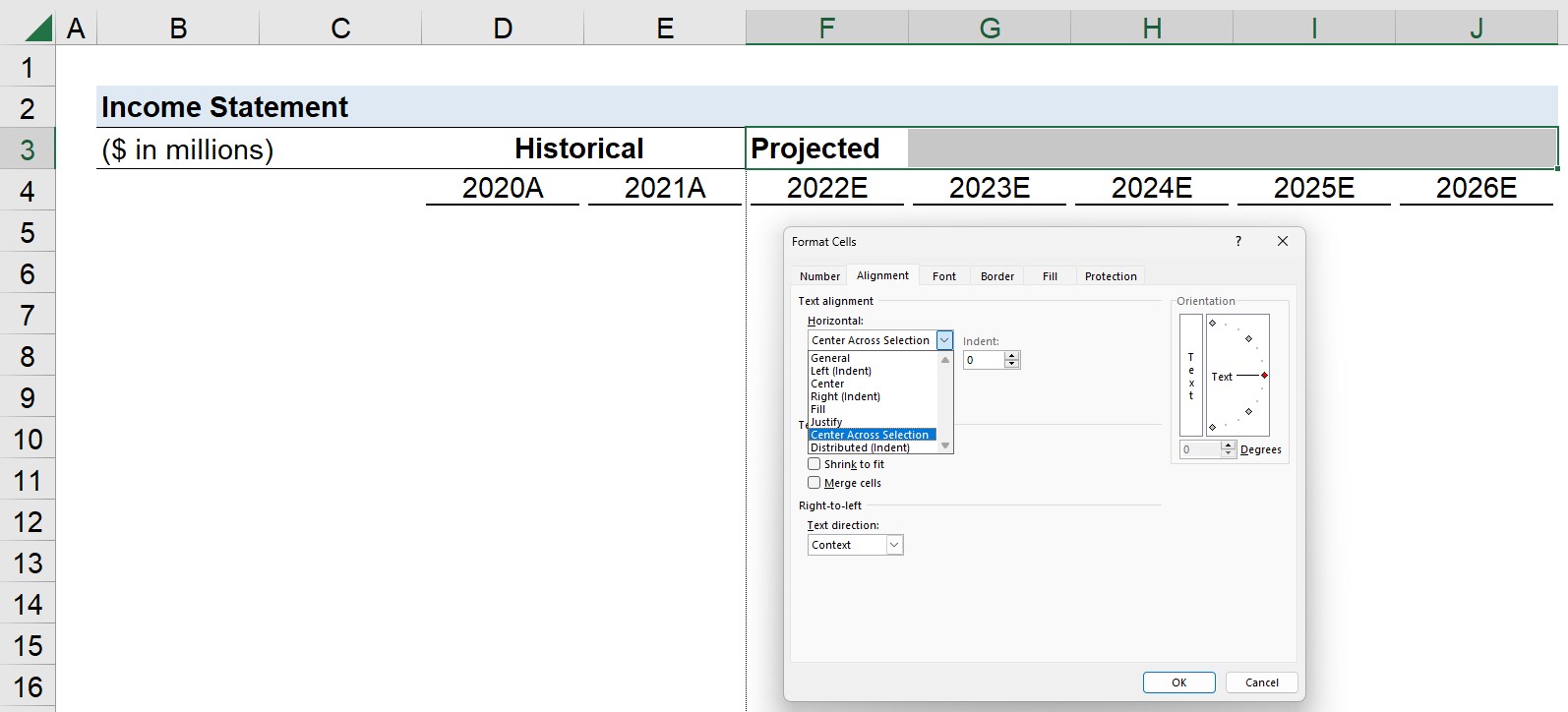
Choose the “Center Across Selection” option, and upon doing so, the formatting should apply, wherein the first cell in the range—the “Projected” text—is centered across the five columns.

The Center Across Selection feature is a far more practical alternative to merging cells, where text can be centered across cells without diminishing the quality of the model’s structure.
On the other hand, merging cells in Excel should be avoided as a general financial modeling best practice.
A well-built financial model should be easy to navigate and edit. However, merging cells causes a spreadsheet to lose the structural integrity of its columns and rows.
For instance, attempting to select a column with a cell that is part of a merged cell automatically results in all the columns containing one of the merged cells to be selected, which may or may not be the intention.
The merged cells would need to be unmerged and reformatted, which is inefficient given how easily it could have been avoided in the first place.
The “Center Across Selection” feature in Excel is therefore the preferable alternative to merging cells to maintain the flexibility of the model structure.



No comments yet.