What is the Excel COUNTA Function?
The COUNTA Function in Excel counts the number of cells that are not blank, such as those containing numbers, text, dates, and other values.

The COUNTA Function in Excel counts the number of cells that are not blank, such as those containing numbers, text, dates, and other values.
The COUNTA function is a built-in feature in Excel that returns the number of non-blank cells in a selected range.
For instance, the COUNTA function could be used to count the number of respondents from a survey or the total number of dates given a large data set.
The most common examples of items counted by the function include:
The COUNTA function counts all cells containing any sort of value in the selected range, such as those showing error values and empty text.
The accidental inclusion of an error message should be relatively easy to avoid, considering how visible the error messages are.
However, certain cells can often appear blank yet contain a hidden figure (and thus still be counted under the COUNTA function). To ensure the cells meant to be blank are in fact treated as blank, use the following steps to select all the blank cells in the sheet:
The Excel COUNTA function formula is as follows.
The bracket around “value2” and all the subsequent entries denote that those inputs are optional and can be omitted.
The table below describes the syntax of the Excel COUNTA function in more detail.
| Argument | Description | Required? |
|---|---|---|
| “value1” |
|
|
| “value2” |
|
|
We’ll now move on to a modeling exercise, which you can access by filling out the form below.


Suppose you’re tasked with counting the number of employees that worked over the holidays.
Using the following data set – which states the hours logged per employee – the total number of employees working per day must be calculated.
Of the ten employees at this particular company, half of the employees are currently on paid time off (PTO) for the holidays.
| Hours Logged | 12/24/22 | 12/25/22 | 12/30/22 | 12/31/22 | 01/01/23 |
|---|---|---|---|---|---|
| Employee 1 | 4 | 2 | 4 | 2 | 6 |
| Employee 2 | 8 | 10 | 8 | ||
| Employee 3 | |||||
| Employee 4 | 6 | 8 | 6 | ||
| Employee 5 | |||||
| Employee 6 | 4 | 6 | 4 | ||
| Employee 7 | |||||
| Employee 8 | |||||
| Employee 9 | |||||
| Employee 10 | 12 | 10 | 12 | 10 | 12 |
Once the data is entered into Excel, the COUNTA function can be used to determine the number of employees working each day.
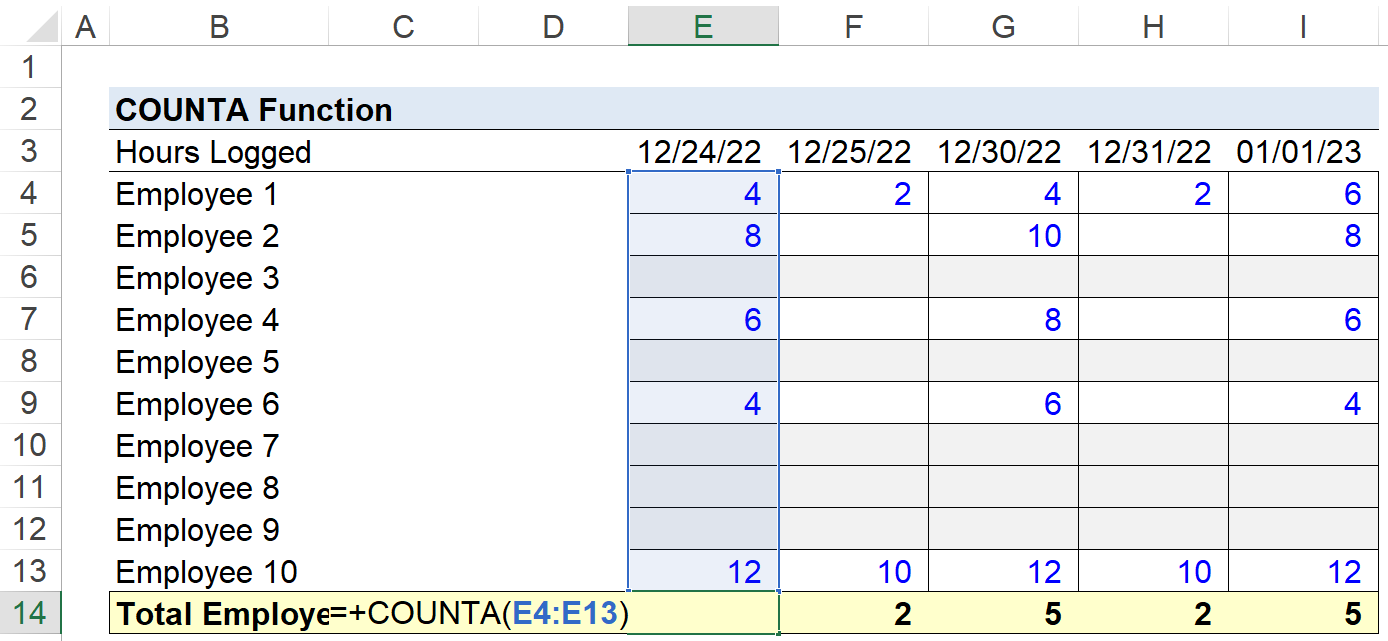
Note that if the empty cells contained either "0" or "N/A", those would still be mistakenly counted.
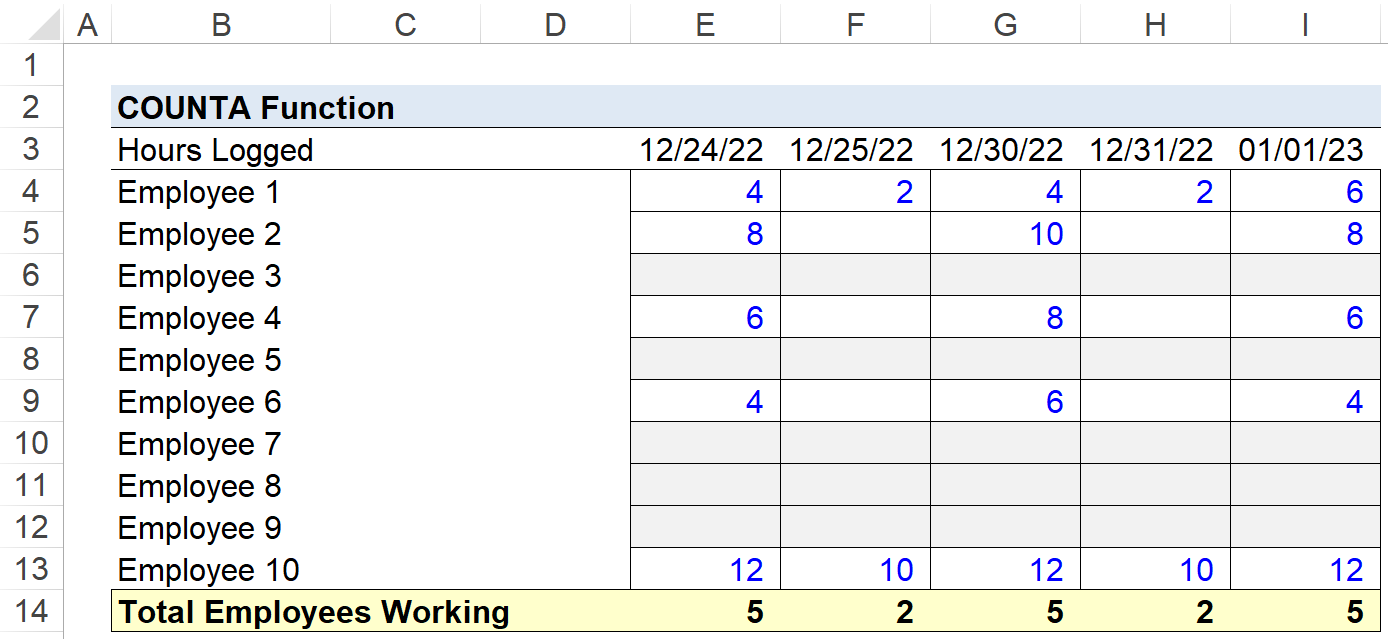
We’re left with the following figures for the working employee count per day.



No comments yet.