What is QAT Toolbar?
The QAT Toolbar in PowerPoint is a customizable ribbon to access any command or feature quickly using the keyboard.

The QAT Toolbar in PowerPoint is a customizable ribbon to access any command or feature quickly using the keyboard.
The Quick Access Toolbar (or QAT for short) is the second half of Microsoft’s newest shortcut system that was introduced back in November 2006.
While you can use Ribbon Guides to access any command or feature in your PowerPoint Ribbon using your keyboard, the QAT is specifically designed to be customized with your most frequently used and hardest to reach commands.
To see why this works so well, see my explanation and QAT Guide demonstration in the short video below.
To learn more about the QAT Guides and get real-world practice using them in the context of investment banking pitch books, check out my PowerPoint Crash Course.
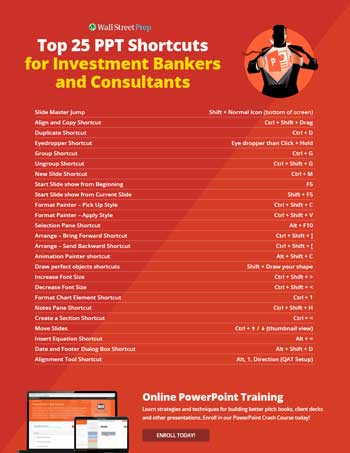

The common characteristics of your QAT Guide shortcuts are:
The great thing about learning how to use these shortcuts is that they work across the entire Microsoft Office suite. That means you can use everything you are learning here to speed up your workflow in Word and Excel too.
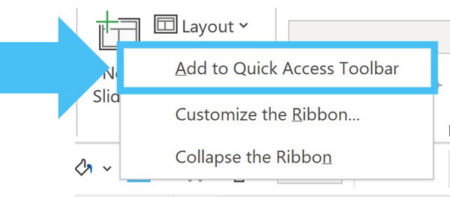
To add a command to your QAT, simply:
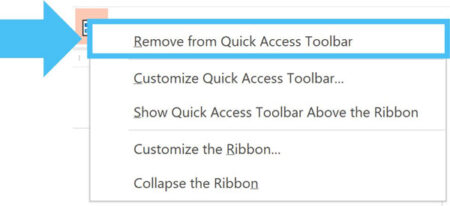
To remove a command from your QAT, simply:
You can also add, remove and arrange commands in the PowerPoint Options dialog box, which you’ll learn about next.
To arrange commands on your QAT, you need to open up the PowerPoint Options dialog box by going to:

Within the Quick Access Toolbar options, you can add commands and features from the different PowerPoint Ribbon tabs by selecting them in the Choose Commands from dropdown menu and then using the Add and Remove buttons.
On top of that, if you select a command in your QAT window on the right, you can then use the Up and Down arrow buttons to arrange them and change their Alt drive shortcut.
From top to bottom, the commands you arrange will have the following Alt driven shortcuts associated with them:
In this way, you can set up the commands and features you use most with the easiest to use QAT shortcuts (positions 1 through 9 being the easiest).
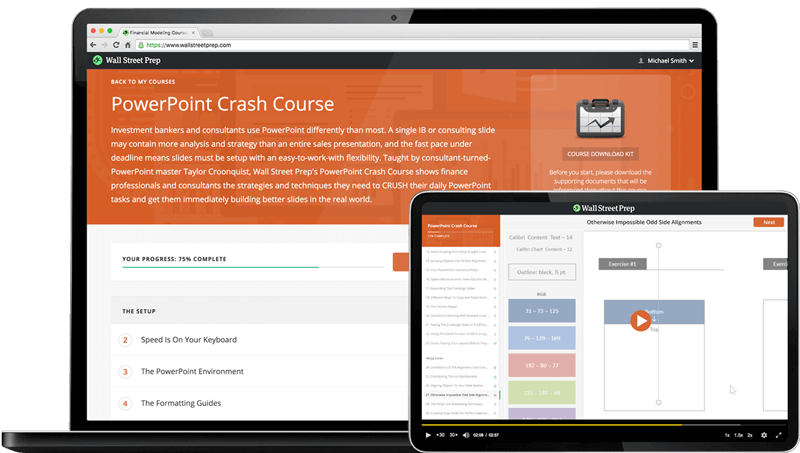
Designed for finance professionals and consultants. Learn strategies and techniques for building better IB pitchbooks, consulting decks and other presentations.
With your QAT setup, simply hit the Alt key on your keyboard to activate the Guides as you can see in the picture below.

If you add more than nine commands to your QAT, those commands will have doubled up QAT Guides.
Doubled up QAT Guides are just like doubled up Ribbon Guides. To access those commands simply hit the numbers or letters in the correct order (no need to hold them down).
For example, to access the Rectangle on my QAT in the picture above, you would simply hit Alt, 0 then 9 (Alt, 09) to draw a rectangle onto your slide.
So those are the basics of how to customize, arrange and use your Quick Access Toolbar in PowerPoint.
In my humble opinion, the Quick Access Toolbar is the single most under appreciated and underutilized tool in PowerPoint that can radically improve your speed and efficacy.
Inside my PowerPoint Crash Course, I show you step-by-step how to get the most out of it, while giving you real-world experience building investment banking and consultant slides as fast as investment-bankerly possible (so you don’t spend unnecessary late nights at the office).
Now that you know the basics of the QAT, it’s time to look at some strategies for getting the most out of it.


No comments yet.