
Ribbon Guide Trick
In the previous article, you learned how you can use your Ribbon Guide shortcuts on a PC to access any command or feature in PowerPoint.
If you missed that article, I recommend first reading about your Ribbon Guide shortcuts here.
As you get more comfortable navigating your Ribbon from your keyboard, you might be wondering: Is it possible to navigate the Ribbon dropdown menus directly from your keyboard even if they don’t have Ribbon Guides?
The answer is yes!, as I demonstrate in the short video below.


Get our Top 25 PowerPoint Shortcut Cheat Sheet
Improving how you navigate your Ribbon using nothing but your keyboard comes down to this:
- Use your Ribbon Guides to open the dropdown menu
- Use your arrow keys to walk around the available items

For example, if you use your Ribbon Guides to open up the Layout dropdown menu (Alt, H, L), you will notice that none of the layouts within it have Ribbon Guides.
You can see all the layouts in the picture below are blank (no Ribbon Guides to select them).
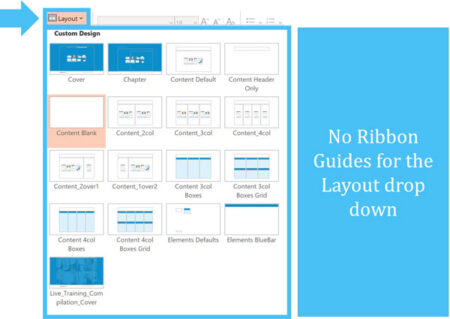
In cases like this, you can simply use your up, down, left and right arrow keys to walk through the options inside the menu.

Once you navigate to the option you want (in this case a specific layout), simply hit the Enter key on your keyboard to make a selection.
Conclusion
So that is how you can use your arrow keys in combination with your Ribbon Guides to quickly access any command or feature in PowerPoint using just your keyboard.
In the next article, I quickly explain what the Bring Forward and Send Backward commands are, and why they are NOT my favorite shortcuts for adjusting the layering of your slides (and what I use instead).
Up Next ...
In the next lesson I'll show you some Shortcuts to Quickly Send Backward and Bring Forward in PowerPoint


No comments yet.